Last updated: October 27, 2026
A magnetic screwdriver is usually safe on laptop screws if you use it to pick up one screw at a time and keep the magnet away from the motherboard, storage drive, and loose parts. The trick is control, not force. If you are learning how to use a magnetic screwdriver on laptop screws without damaging parts, start with a light tip and a tray.
Key takeaways
- A light magnetic tip helps lift and place tiny laptop screws without dropping them into the chassis.
- Use the magnet only for screw pickup and placement, not for prying or hunting around inside the machine.
- Keep the tip away from the motherboard, storage drive, and any exposed connector while you work.
- If a screw resists, switch to a better-fitting bit or a non-magnetic tool instead of pushing harder.
- A small screw tray matters more than magnet strength; one tray beats a dozen dropped screws.
- Some storage drives and older components deserve extra caution, so magnetize the bit lightly and work deliberately.
Use a magnetic screwdriver the safe way
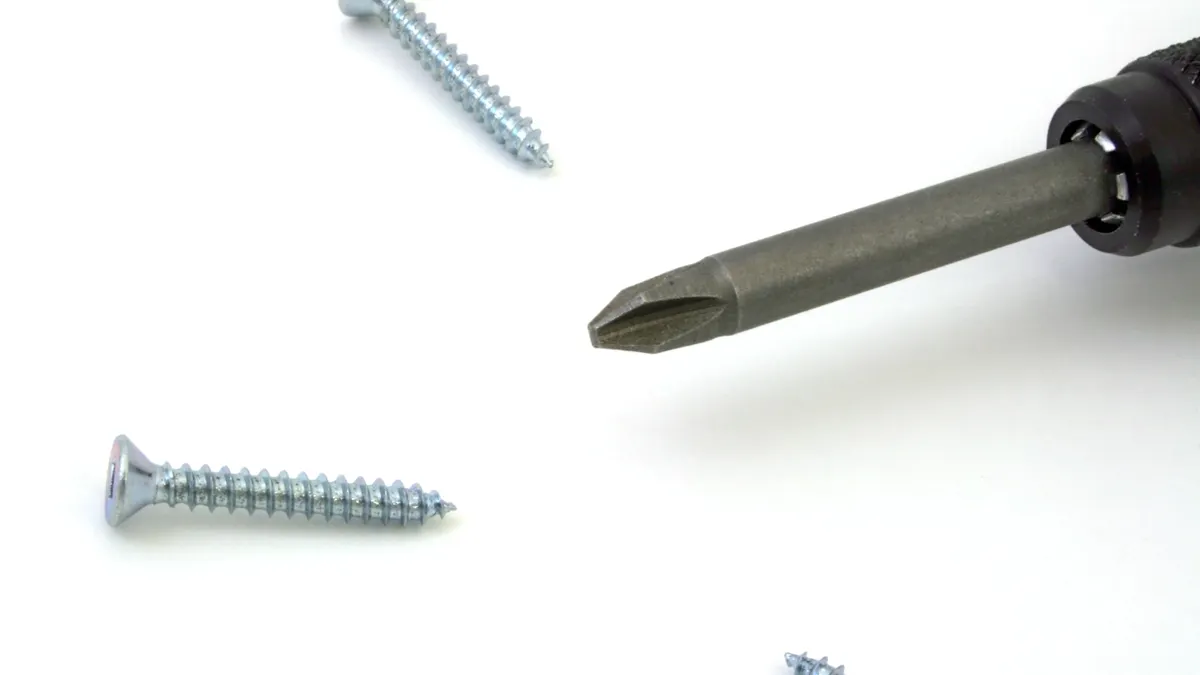
A magnetic screwdriver is safest when the magnet is just strong enough to hold a laptop screw on the tip and weak enough that you can release it cleanly. That is the balance you want before opening the bottom cover of a laptop with 8 to 20 screws, most of them very small. The topic here is how to use a magnetic screwdriver on laptop screws without damaging parts.
Start by putting the laptop on a stable table and grounding yourself by touching a metal object nearby. Then open the machine only as far as you need. If the screw is a captive type, do not force it out of the cover; it may stay attached to the panel after loosening. If the screw is loose, use the magnetic tip to lift it straight out, not at an angle.
The real risk is not usually the magnet itself. The risk is slipping, dropping a screw into the chassis, or dragging the tip across a connector, ribbon cable, or motherboard trace. A magnet does not belong near a hard storage drive that is still exposed, and it does not belong near a stack of loose screws in the same cavity. A screw tray or parts organizer keeps the removed fasteners from rolling away.
If you are opening a device with a mechanical hard drive, SSD bracket, or other exposed storage drive, remove and set that part aside before working near the magnetized tip. For most modern laptops with an M.2 SSD, the magnet on a screwdriver is still fine if you stay deliberate and keep the tip on the screw head only. If the setup looks cramped, use a slightly weaker magnet or demagnetize the bit a little.
What you need before you touch the screws
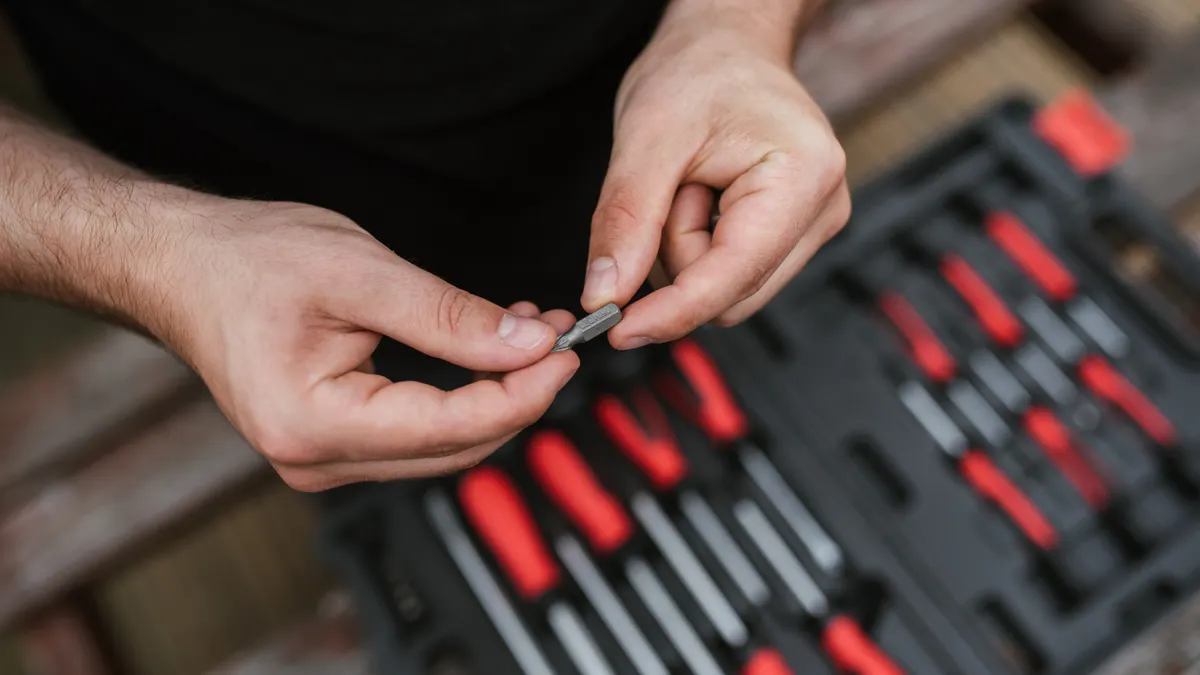
You need a magnetic screwdriver, a clean screw tray, and enough light to see the screw heads clearly. A 10- or 12-compartment parts tray is enough for most laptop repairs, but any shallow dish with labeled spots works if you keep screws separated by location.
Use a driver with a bit that fully fills the screw head. For many laptop covers and internal brackets, that means a Phillips bit size that fits snugly without wobble. The exact size varies by model, so the fit matters more than the magnet. A strong bit fit reduces cam-out, which is when the tool climbs out of the head and chews the slot.
Set out a plastic spudger or non-metal pry tool if the model uses clips around the base cover. The magnetic screwdriver should remove screws, not persuade plastic tabs. A microfiber cloth or soft mat also helps because it keeps removed screws from bouncing away when they let go.
If you have a magnetic parts bowl, keep it a few inches from the laptop, not directly over the open chassis. That bowl is for removed screws, not for sitting on top of the motherboard area. A small container with a lip is better than a flat desk, because one nudge does not send the screws sliding.
How do I pick up and place a laptop screw without dropping it?
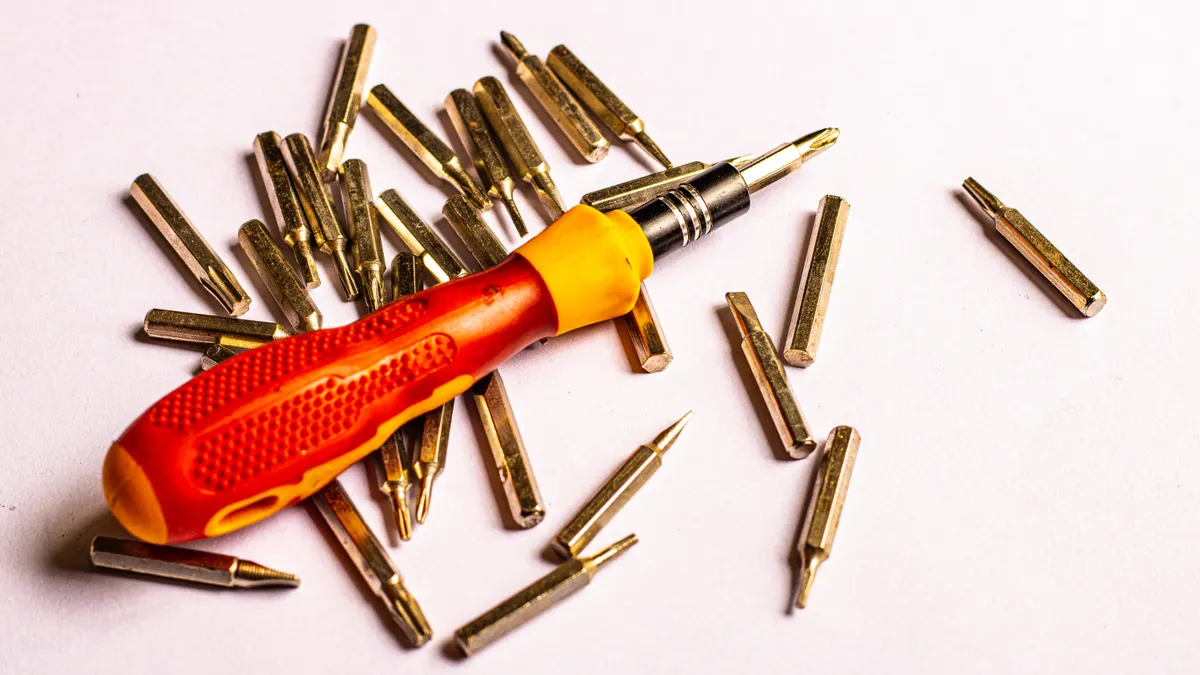
Pick up the screw by touching the bit to the head, lifting straight up, and moving it only as far as the screw tray or hole it came from. That straight-line motion is the easiest way to keep a tiny laptop screw under control.
-
Seat the correct bit squarely in the screw head before you lift.
You should feel the bit settle without rocking. If it wobbles, stop and change the bit, because a poor fit is how heads strip. -
Touch the magnetic tip to the screw head, then give it a light twist.
The screw should cling to the bit with enough hold to come free from the hole. If it hangs on by half a thread, back out gently rather than tugging. -
Lift the screw straight up, 1 to 2 inches if the space allows.
The screw should stay attached. If it swings or spins on the tip, the magnet is strong enough for pickup but not ideal for transport, so shorten the path. -
Move the screw over the tray or a labeled spot on the desk.
It should release when you tilt the screwdriver or touch the screw head to the container. Do not shake the tool; that is how screws disappear into the chassis. -
When reinstalling, let the screw hang on the bit and aim it into the hole first.
The screw should start by hand and turn smoothly for the first few rotations. If it cross-threads, back out and realign it before tightening.
The point is to let the magnet do the holding, not the forcing. A laptop screw is small enough that overcontrol can be worse than a drop. If the tip grabs too hard, touch it briefly to a steel tool or a metal tray to soften the hold before you go near the laptop again.
What parts should stay away from the magnetized tip?
The magnetic tip should stay away from the motherboard, exposed storage drive, and any loose magnetic sensor or connector area. That does not mean a screwdriver is dangerous at a normal working distance; it means you should not wave it across the open chassis.
The motherboard is full of tiny soldered components, but the magnet on a screwdriver is usually not strong enough to yank parts off the board. The real concern is contact damage: slipping across the board, brushing a ribbon cable, or dropping a screw where it can short something. Keep the tool above the screw heads and use slow, deliberate movements.
Storage drives need more care. A modern SSD in an M.2 slot is not the same as an old mechanical hard drive, but exposed storage hardware still deserves a clean workspace and minimal clutter. If the drive is already removed, set it aside before you work with a magnetized tool nearby. If it stays in place, keep the screwdriver parked away from the drive bay unless you are actually fastening a screw.
The same caution applies to standoffs and brackets. A standoff is the threaded post a screw bites into, and those can be easy to cross-thread if you force the screw in while the bit is pulling sideways. Start every screw by hand pressure through the driver, then turn gently. If the screw falls off the tip too early, the magnet is too weak or the bit is too worn. If it sticks too hard, reduce the magnetization or use a less magnetic bit for installation.
A small screw tray also keeps the magnet from attracting a cluster of fasteners at once. Two screws stuck together are harder to place than one. That is why a tray is not optional on laptop work; it prevents the very problem the magnet creates. If you are unsure about the setup, consult a laptop repair professional and follow a repair guide for your exact model.
When not to magnetize the bit
Do not magnetize the bit strongly when you are working around a mechanical hard drive, a loose magnetic medium, or a delicate area where a dropped screw would be costly. A lightly magnetic screwdriver is useful; a heavily magnetized bit is clumsy inside a crowded laptop.
If the tool keeps pulling screws sideways instead of letting them land in the hole, it is too magnetized for the job. That shows up most often with tiny cover screws and standoff screws, where the screw wants to hang from the side of the bit instead of sitting centered. At that point, demagnetize the bit slightly or use a different driver for the reinstall step.
Do not use the magnetic tip as a probe. Prying with a screwdriver can damage a ribbon cable latch, mar a plastic edge, or slip into the motherboard area. A magnetic screwdriver belongs in the fastener slot, not under clips or under shields.
There is also a practical limit on older or unknown laptops. Some machines have fragile screw heads, mixed screw lengths, or hidden fasteners under rubber feet and labels. If a screw feels stuck after a couple of turns, stop and check whether it is the wrong fastener, whether the cover is still holding tension, or whether the bit is the wrong size. A stronger magnet will not solve a mechanical problem.
If the work involves a valuable board-level repair, or the laptop is already opened near the power section, a non-magnetic precision driver can be the calmer choice. That is the right call when a loose screw would be worse than a dropped one. For the broader tool kit around this job, the laptop screwdriver set hub covers the rest of the basics without repeating this procedure.
Common mistakes that damage laptop parts
The most common mistake is using the magnet to compensate for the wrong bit size. That costs you the screw head, because a slipping driver rounds the slot before the magnet can help. The fix is simple: match the bit to the head and stop when it rocks.
The second mistake is lifting too many screws at once with a strong magnetic tip. That turns a simple removal into a tangle of stacked fasteners. Two screws stuck together can drop into the bottom cover or hide under the board edge. Keep one screw on the tip at a time and drop each one into the tray immediately.
The third mistake is working without a tray. A screw that rolls onto carpet can vanish in seconds, and a missing screw often leads to over-tightening the next one. That can crack a plastic boss or pinch the cover. A shallow tray, a magnetic bowl, or even a labeled sheet of paper is better than bare desk space.
The fourth mistake is forcing a screw into a standoff at an angle. That damages the threads and makes later removal harder. Start the screw with fingertips on the driver, turn until it catches smoothly, then finish snugly without cranking it down. Laptop screws are small; they do not need heavy torque.
The fifth mistake is assuming every magnetic screwdriver acts the same. Some tips hold a screw lightly, some grab hard enough to make placement awkward, and some lose magnetization over time. If yours feels unpredictable, that is a tool problem, not a laptop problem. A quick check on a spare screw tells you whether the hold is usable before you touch the machine again.
A simple laptop screw routine that keeps parts safe
A good routine is to remove one screw, place one screw, and keep the chassis open for the shortest time possible. That cuts the chance of mixing screw lengths, touching the wrong area, or losing track of a fastener.
Work in this order: open the laptop, loosen the bottom-cover screws, sort them in the tray by position, lift the cover gently, and then use the magnetic screwdriver only for the screws you can clearly see. The screw should come free cleanly and land in a marked space. If it does not, stop and correct the fit rather than increasing force.
When reinstalling, reverse the sequence and start every screw before tightening any of them fully. That keeps the cover aligned and prevents one screw from fighting the others. A laptop shell often settles better if the screws are all threaded lightly first, then tightened in a second pass.
That method sounds slow, but it is faster than fishing a dropped screw from under a shield or repairing a stripped head. The whole point of a magnetic screwdriver on a laptop is controlled handling: enough magnetism to hold a tiny part, not enough to create new problems.
Drafted with AI; not yet reviewed by a person.